Why WordPress Speed Matters
A fast site feels trustworthy. Visitors read more pages, abandon fewer checkouts and are more likely to come back. Search engines also measure page experience, and Google's Core Web Vitals are part of how it judges that experience.
WordPress is not slow by nature. A clean install on decent hosting loads quickly. Sites become slow as layers are added: a heavy theme, a page builder with many add-ons, large images, tracking scripts, chat widgets, ads and plugins that load their files on every page. Speed optimization is mostly about removing or reducing those layers, then making sure what remains is cached and delivered efficiently.
The order matters. Minifying CSS will not fix a slow server, and a fast server will not rescue a 6 MB hero image. This guide works through the layers in the order that usually gives the biggest gains first.
How to Measure Your Site's Speed

Before changing anything, record where you are. Test your homepage, a typical post and your most important money page, because they often perform differently.
| Tool | What It Shows | Best Use |
|---|---|---|
| PageSpeed Insights | Lab score plus real-user field data (Core Web Vitals) | Checking how Google sees a page |
| Search Console Core Web Vitals report | Field data grouped by URL type | Finding which templates fail |
| Chrome DevTools (Lighthouse, Performance) | Detailed waterfall and main-thread work | Diagnosing specific problems |
| WebPageTest | Filmstrip, waterfall, multiple locations | Comparing before and after |
| GTmetrix | Waterfall and history | Tracking changes over time |
Lab Data vs Field Data
Lab data comes from a single simulated test on a controlled device and connection. It is consistent, which makes it useful for comparing changes. Field data comes from real Chrome users over the previous 28 days. It is what Google uses for Core Web Vitals, but it updates slowly and only appears once a page has enough traffic.
Use lab tests to diagnose and confirm fixes, and field data to judge whether visitors are actually getting a better experience.
What to Write Down
For each test page, note the Largest Contentful Paint (LCP) time, Total Blocking Time or Interaction to Next Paint (INP), Cumulative Layout Shift (CLS), total page weight, number of requests and Time to First Byte (TTFB). Repeat the same tests after each change so you know which change helped.
The Speed Optimization Order That Works
| Layer | What to Fix | Typical Impact |
|---|---|---|
| 1. Hosting | Server response time, PHP version, server caching | High |
| 2. Page caching | Serve pre-built HTML instead of running PHP | High |
| 3. Images | Size, compression, format, lazy loading | High |
| 4. Theme and builder | Code weight, unused features | Medium to high |
| 5. Plugins and scripts | Plugins loading everywhere, third-party scripts | Medium to high |
| 6. CSS and JavaScript | Minify, defer, delay, remove unused CSS | Medium |
| 7. Fonts | Fewer families, local hosting, font-display | Low to medium |
| 8. Database | Revisions, transients, autoloaded options | Low to medium |
| 9. CDN | Deliver static files close to visitors | Medium for global audiences |
Work top to bottom and re-test after each step. Most sites see the biggest improvements from the first three layers.
Step 1: Start With Hosting
Time to First Byte (TTFB) is how long the server takes to start sending the page. If an uncached page takes more than about a second to start arriving, no front-end tweak will fully hide it.
Signs your hosting is the bottleneck:
- TTFB is high even on simple pages, and still high after page caching is on.
- The WordPress admin area is slow, which caching cannot help.
- The site slows down or shows errors during traffic spikes.
- Your control panel shows CPU or memory limits being hit.
What helps:
- A current PHP version. Newer PHP releases run WordPress code faster. Switch in your host's control panel after testing on staging.
- Server-level caching. Hosts running LiteSpeed, Nginx with page caching or Varnish can serve cached pages very quickly.
- Object caching. Redis or Memcached speeds up database-heavy sites such as stores and membership sites.
- Enough resources. If you regularly hit limits, a bigger plan or a cloud server solves problems no plugin can.
Our WordPress hosting section compares hosts by their server stack, and best WordPress hosting ranks options from budget to managed cloud.
Step 2: Turn On Page Caching
WordPress builds every page on request: PHP runs, the database is queried, plugins hook in and HTML is assembled. Page caching saves that finished HTML and serves it to the next visitor without repeating the work. It is the single most effective speed step for most sites.
You can get page caching in three ways:
- From your host. Many managed and LiteSpeed-based hosts include server-level caching. Check this first, because some hosts do not allow other caching plugins.
- From a free plugin. LiteSpeed Cache is free and very capable on LiteSpeed servers. WP Super Cache, WP Fastest Cache and W3 Total Cache work on any server.
- From a premium plugin. WP Rocket turns on page caching, browser caching and preloading when you activate it, and adds file optimization, delayed JavaScript and lazy loading in a simple dashboard.
Our WordPress caching plugins guide compares the main options, the WP Rocket review covers the premium choice in depth and WP Rocket vs LiteSpeed Cache explains which to pick on your host.
What Not to Cache
Some pages must stay dynamic: carts, checkout, account pages and anything personalized for logged-in users. Good caching plugins exclude WooCommerce's cart and checkout automatically, but always test a full purchase or signup after enabling caching.
Step 3: Optimize Images

Images are usually the heaviest part of a page. Three changes cover most of the gain:
- Upload at the right size. If your content area is 800 pixels wide, a 4,000-pixel photo is wasted data. Resize before uploading, or set a maximum size with an image plugin.
- Compress and convert. Modern formats such as WebP and AVIF are much smaller than JPEG and PNG at similar quality. Many image and caching plugins convert automatically.
- Lazy load below-the-fold images. WordPress adds native lazy loading to most images. Do not lazy load the main image at the top of the page; it is often the LCP element and should load immediately.
How to Fix "Serve Scaled Images" in WordPress
PageSpeed tools flag "serve scaled images" or "properly size images" when an image's file dimensions are larger than the size it is displayed at. The browser downloads the large file and then shrinks it, wasting bandwidth.
To fix it:
- Find the displayed size. In Chrome, right-click the image, choose Inspect and note the rendered width.
- Upload a version close to that size. For full-width images on retina screens, about twice the display width is a reasonable maximum.
- Use WordPress's built-in image sizes. WordPress creates several sizes on upload and adds srcset, so browsers pick the right one. Insert images with the block editor's image block rather than hard-coded HTML.
- Check your theme's image sizes. Some themes register very large sizes for featured images. A theme setting or a small code change can register a more sensible size.
- Regenerate thumbnails after changing sizes, using a regeneration plugin or WP-CLI.
- Watch page builders. Some builders insert the full-size image by default. Choose a smaller size in the image widget settings.
Image Settings Checklist
| Setting | Recommended |
|---|---|
| Maximum upload width | About 2× your largest display width |
| Format | WebP or AVIF with JPEG/PNG fallback |
| Compression | Lossy, quality around 75–85 |
| Lazy loading | On for images below the fold |
| Hero/LCP image | Not lazy loaded; consider preloading |
| Width and height attributes | Always set, to prevent layout shift |
To choose a plugin for compression and WebP or AVIF conversion, see the best image optimization plugins.
Step 4: Choose a Lean Theme and Use Builders Carefully
Your theme loads on every page, so its weight matters. Lightweight themes such as GeneratePress, Astra and Kadence ship little CSS and JavaScript by default. Page builders add flexibility but also add code, especially when you use many widgets, animations and add-on packs.
You do not need to abandon a builder to have a fast site. Keep layouts simple, avoid stacking several add-on packs, disable features you do not use and let a caching plugin handle unused CSS. Our GeneratePress review and best WordPress themes cover the theme side, and the Elementor review explains how to keep builder pages lean. For a shortlist of lightweight options, see the fastest WordPress themes.
Step 5: Audit Plugins and Third-Party Scripts
The number of plugins matters less than what they load. One poorly built plugin can add more weight than ten well-built ones. Look for:
- Plugins that load files on every page even though you use them on one page, such as form or slider plugins.
- Overlapping plugins, like two SEO plugins or two caching plugins.
- Third-party scripts such as chat widgets, heatmaps, social embeds, ad scripts and multiple analytics tags. These often cost more than any plugin.
How to audit:
- Open your slowest page in Chrome DevTools and sort the Network tab by size and time.
- Note which domains and plugin folders the heaviest files come from.
- Remove what you do not need, replace heavy tools with lighter ones and load the rest only where required.
- Delay non-essential JavaScript until user interaction. WP Rocket, LiteSpeed Cache and several other plugins offer this.
Step 6: Optimize CSS and JavaScript
Once the heavy items are gone, refine how the remaining files load:
- Minify CSS and JavaScript to remove whitespace and comments.
- Defer non-critical JavaScript so it does not block rendering.
- Delay scripts such as analytics or chat until the visitor interacts.
- Remove unused CSS or generate critical CSS for the top of the page.
- Avoid combining files blindly. With HTTP/2 and HTTP/3, combining many files into one is less useful and can break things.
Test after each change. Aggressive JavaScript optimization is the most common cause of broken menus, sliders and forms.
Step 7: Fonts
Fonts can delay text from appearing and cause layout shifts. Use one or two font families, load only the weights you use, host fonts locally rather than calling a third-party server and set font-display to swap. A system font stack is the fastest option of all.
Step 8: Clean the Database
Over time the database collects post revisions, spam comments, expired transients and leftover data from deleted plugins. Cleaning it helps most on older sites and stores.
- Limit post revisions with a constant in wp-config.php.
- Remove spam and trashed comments.
- Clear expired transients.
- Check autoloaded options, which load on every request; large autoloaded data from old plugins slows every page.
WP-Optimize, WP Rocket and LiteSpeed Cache include database cleanup tools. Always back up before cleaning.
Step 9: Add a CDN
A content delivery network stores copies of static files such as images, CSS and JavaScript on servers around the world and serves them from the nearest one. For a local business with local visitors, a CDN helps less. For a global audience, it can cut load times noticeably.
Options include your host's built-in CDN, Cloudflare's free plan, QUIC.cloud (which works with LiteSpeed Cache) and RocketCDN from WP Rocket. Our best CDN for WordPress guide compares prices and setup.
Core Web Vitals Explained
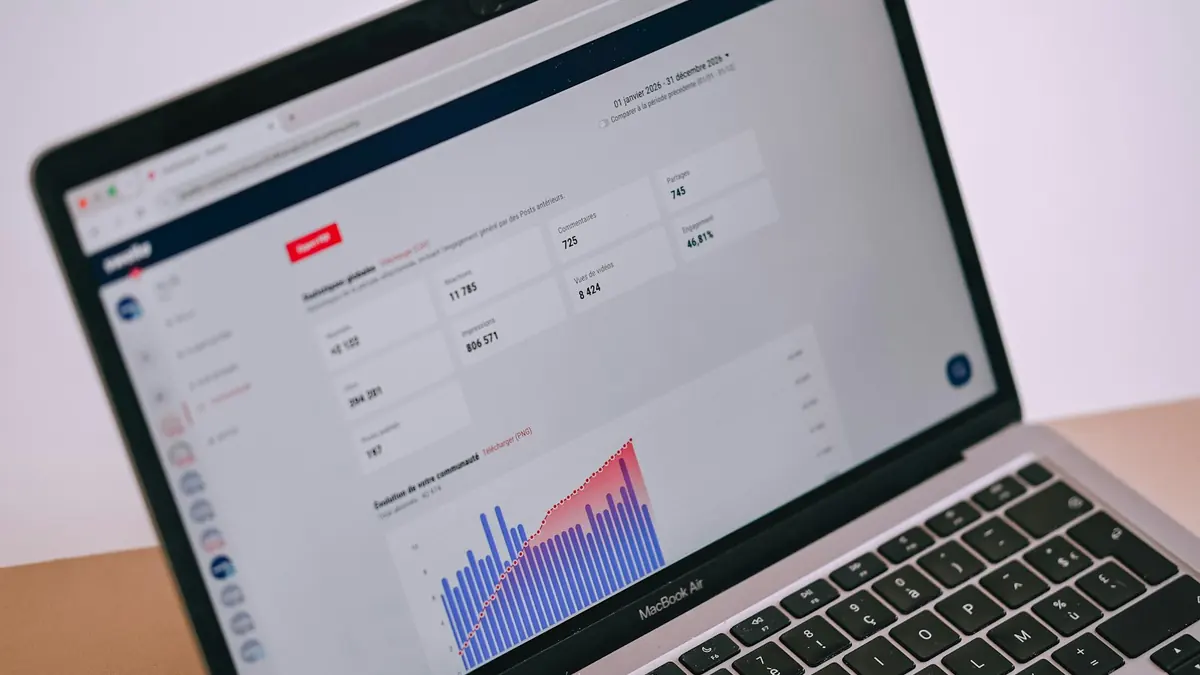
Core Web Vitals are Google's measures of real-user experience. A page passes when at least 75% of visits meet the "good" threshold for each metric. For a full walkthrough of fixing each metric, see Core Web Vitals for WordPress.
| Metric | Measures | Good | Common Causes of Failure |
|---|---|---|---|
| Largest Contentful Paint (LCP) | Loading of the main content | 2.5 s or less | Slow server, large hero image, render-blocking CSS |
| Interaction to Next Paint (INP) | Responsiveness to clicks and taps | 200 ms or less | Heavy JavaScript, long tasks, third-party scripts |
| Cumulative Layout Shift (CLS) | Visual stability | 0.1 or less | Images without dimensions, late-loading ads, fonts |
How to Improve LCP
- Reduce TTFB with better hosting and page caching.
- Optimize and preload the hero image, and do not lazy load it.
- Remove render-blocking CSS and JavaScript above the fold.
- Avoid sliders and large background videos at the top of the page.
How to Improve INP
- Remove or delay heavy third-party scripts.
- Reduce JavaScript from builders and plugins on interactive pages.
- Break up long tasks, which usually means fewer scripts rather than code changes.
How to Improve CLS
- Set width and height on images and embeds.
- Reserve space for ads, banners and cookie notices.
- Use font-display: swap with matched fallback fonts.
WordPress Speed Plugins by Job
| Job | Free Options | Premium Options |
|---|---|---|
| Page caching | LiteSpeed Cache, WP Super Cache, WP Fastest Cache, W3 Total Cache | WP Rocket |
| File optimization | Autoptimize, LiteSpeed Cache | WP Rocket |
| Image compression | LiteSpeed Cache with QUIC.cloud, several free tiers | Premium image services |
| Database cleanup | WP-Optimize | WP Rocket |
| CDN | Cloudflare free, QUIC.cloud free tier | RocketCDN, host CDN add-ons |
Use one tool per job. Two caching plugins or two file optimizers will conflict.
Speed Optimization by Site Type
Different kinds of sites slow down for different reasons, so the priorities shift.
Blogs and Content Sites
Content sites are mostly read by anonymous visitors, which makes page caching extremely effective. The usual problems are oversized images, ad and analytics scripts, embedded videos and social widgets. Focus on image sizing, delaying third-party scripts and replacing video embeds with lightweight placeholders until clicked.
Business and Brochure Sites
These sites are often built with a page builder and a premium theme with many features switched on. Turn off theme modules you do not use, keep homepage sliders and animations to a minimum and check that contact forms and maps only load their scripts where needed.
WooCommerce Stores
Stores are harder because cart, checkout and account pages cannot be cached, and product pages carry many images. Priorities:
- Good hosting with object caching (Redis or Memcached).
- Compressed, consistently sized product images.
- Fewer plugins that hook into every product page.
- Testing checkout speed, not just the homepage.
Our WordPress hosting section explains which plans include object caching.
Membership Sites and Online Courses
Logged-in users bypass most page caches, so server resources and database speed matter more than front-end tweaks. LiteSpeed's private cache, object caching and a host with enough PHP workers make the biggest difference.
Landing Pages for Paid Traffic
Every second counts when you pay for clicks. Keep landing pages short, avoid heavy builders where possible, compress the hero image and remove chat widgets and unrelated scripts. See our landing page builder guide.
How to Read a Waterfall Chart
The waterfall view in WebPageTest, GTmetrix or Chrome DevTools shows every file the page loads, in order, and how long each takes. It is the fastest way to see what is really slowing a page.
| What You See | What It Usually Means | What to Do |
|---|---|---|
| Long first bar (HTML document) | Slow server or no page cache | Check hosting and caching |
| Many requests to one plugin folder | A plugin loading assets everywhere | Load only where used, or replace |
| Large image files near the top | Oversized hero or banner image | Resize, compress, convert to WebP |
| Many third-party domains | Analytics, ads, chat, embeds | Remove, delay or self-host where possible |
| Font files late in the chain | Fonts discovered late | Preload key fonts or use system fonts |
| Long gaps with little activity | JavaScript running on the main thread | Delay or remove heavy scripts |
Look for the few largest or slowest items first. Fixing three big problems beats fixing thirty small ones.
Mobile Speed Matters Most
Most visits to most sites happen on phones, which have slower processors and often slower connections than desktops. PageSpeed Insights tests mobile by default for this reason. A page that feels instant on your laptop can still struggle on a mid-range phone because of JavaScript processing time.
Practical mobile checks:
- Test on a real mid-range phone, not only on a desktop browser.
- Watch for layout shifts when ads, images or fonts load.
- Make sure the hero image is sized for mobile screens.
- Limit animations and scroll effects, which cost processing time.
When to Hire Help
Some speed problems need a developer: slow database queries from custom code, a theme that loads huge amounts of JavaScript, server configuration on a VPS or a store with many extensions. If you have worked through the steps in this guide and your field data is still poor, a performance audit by a WordPress specialist can pinpoint the remaining issues.
Keeping Your Site Fast Over Time
Speed is not a one-time job. New plugins, larger images and extra scripts creep in. A simple routine helps:
- Check Core Web Vitals monthly in Search Console.
- Re-test key templates after installing plugins or changing themes.
- Review third-party scripts every few months and remove what you no longer use.
- Keep PHP, WordPress, themes and plugins updated.
- Clean the database on a schedule.
- Compress images before upload as part of your publishing routine.
Common Speed Mistakes

- Chasing a 100 score. A perfect lab score on the homepage means little if product pages fail in the field.
- Stacking optimization plugins. Overlapping features cause conflicts and can slow the site.
- Lazy loading the hero image. This delays LCP.
- Ignoring mobile. Most visits are on phones with slower processors and networks.
- Testing only the homepage. Templates differ; test posts, products and landing pages.
- Skipping a backup. Take a backup before major changes so you can roll back.
Speed Myths to Ignore
- "Fewer plugins always means a faster site." Quality matters more than count.
- "A 100 PageSpeed score means a fast site." Field data from real users is what counts.
- "Caching fixes everything." It does not help logged-in users, checkouts or the admin area.
- "Combining all files is always better." With HTTP/2 and HTTP/3, combining can backfire.
- "Expensive hosting guarantees speed." A heavy theme and too many scripts slow any host.
Focus on what real visitors experience and fix the biggest problems first.
Quick Wins You Can Do Today
If you only have an hour, these steps usually make a noticeable difference:
- Update PHP to the newest version your host offers and your plugins support.
- Turn on page caching from your host or one caching plugin.
- Compress your five largest images and convert them to WebP.
- Delete plugins you no longer use, not just deactivate them.
- Remove one third-party script you do not need, such as an old chat widget or unused tracking tag.
- Exclude your hero image from lazy loading so it loads immediately.
- Re-test with PageSpeed Insights and note the change.
These steps cost nothing and carry little risk, especially if you take a backup first. Once they are done, the deeper steps in this guide, such as removing unused CSS and delaying JavaScript, become easier to measure because the biggest problems are already gone.
How Long Speed Improvements Take to Show
Lab tests show the effect of a change immediately. Field data in PageSpeed Insights and Search Console reflects the previous 28 days of real visits, so improvements appear gradually over about a month. After fixing a Core Web Vitals issue, you can ask Search Console to validate the fix, which starts a new monitoring period. Be patient and avoid making many unrelated changes at once, or you will not know which one helped.
A Simple Speed Plan for Most Sites
If you want a short version of this guide, follow these steps in order:
- Confirm your host offers a current PHP version and server caching. If it does not, consider a better WordPress host.
- Turn on page caching with your host's tool or one caching plugin.
- Resize and compress images, convert to WebP and keep the hero image eager.
- Remove unused plugins and third-party scripts.
- Enable minification, deferral and delayed JavaScript, testing as you go.
- Add a CDN if your audience is spread across regions.
- Check field data in Search Console after a month.
If you would rather have one plugin handle caching and front-end optimization on any host, WP Rocket is the simplest premium option. If your host runs LiteSpeed, start with the free LiteSpeed Cache plugin.
Speed Guides in This Section
Frequently Asked Questions
What Is the Fastest Way to Speed Up a WordPress Site?
Turn on page caching, compress and resize your images, and remove plugins you do not use. Those three steps fix the most common causes of a slow site. After that, look at your hosting, theme and scripts.
Do I Need a Caching Plugin If My Host Has Caching?
Not always. Many hosts run server-level page caching, and some block third-party caching plugins. Check what your host provides first. You may still want a plugin for file optimization, delayed JavaScript and image lazy loading.
What Are Core Web Vitals?
Core Web Vitals are three Google metrics that measure real-user experience. Largest Contentful Paint measures loading, Interaction to Next Paint measures responsiveness, and Cumulative Layout Shift measures visual stability.
What Does "Serve Scaled Images" Mean?
It means an image file is larger in pixels than the size it is displayed at. The browser downloads extra data and then shrinks the image. Upload images close to their display size and let WordPress serve the right size with srcset.
Is a Good PageSpeed Insights Score Enough?
No. The lab score is a useful diagnostic, but Google uses field data from real Chrome users for Core Web Vitals. Check the field data in PageSpeed Insights and the Core Web Vitals report in Search Console.
Will a Faster Site Rank Higher?
Page experience is one of many ranking signals, and content relevance matters far more. A faster site still helps visitors stay, read and buy, which is reason enough to optimize.
Want Caching That Works on Any Host? See WP Rocket's Plans
Check the current plans, site limits and refund terms on the official WP Rocket website.
See WP Rocket Plans